

- Регистрация
- 17 Фев 2018
- Сообщения
- 42,327
- Реакции
- 0
- Баллы
- 36
Ofline
Whether your computer crashes or just feels slow, you can resolve many issues in the UEFI/BIOS. Here’s how to troubleshoot, improve performance, and restore your system.

Image: Skärmdump
Summary created by Smart Answers AI
Keep an eye on your PC when you’ve just switched it on. Usually, a screen flashes by before Windows (or Linux, for that matter) starts to boot up. This is a glimpse of the computer’s basic firmware, often referred to as the BIOS, even though all modern PCs use something called the UEFI (Universal Extensible Firmware Interface).
The main task of the UEFI software is to activate all hardware components and hand the computer over to the operating system in a working state. But it also has another important task: to provide a user interface for basic settings of the computer’s hardware that apply regardless of the operating system. And if something goes wrong and Windows fails to start, you may need to open the UEFI to, for example, boot the computer from a USB stick instead of the internal storage.
When you press your PC’s power button, the boot process begins with the processor reading its very first instruction from a predetermined memory address that points to the UEFI software’s starting point. The UEFI software is stored in a ROM chip on the motherboard.
The first thing UEFI does is check that all necessary components are in place and can be activated, a process known as POST and usually indicated by LEDs on the motherboard. If something goes wrong here and the computer fails to start at all, the LEDs are used to display an error code that you can use for troubleshooting. This could, for example, be that a faulty memory module is connected or that you have not connected a graphics card.
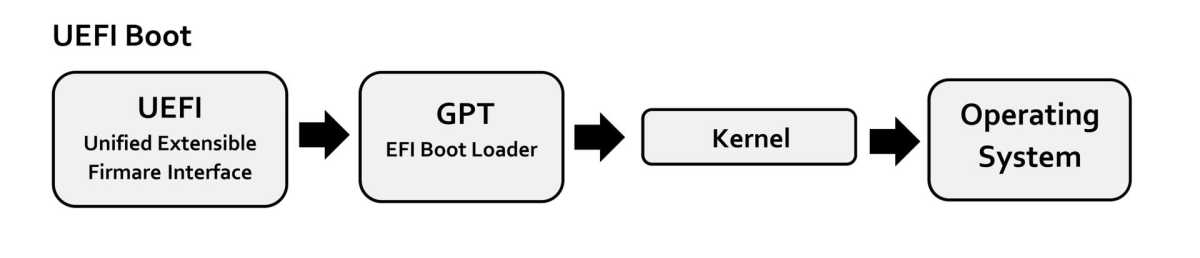
From UEFI to the operating system.
Amila Ruwan (CC BY-SA 4.0)
UEFI uses settings you have configured in its interface (often referred to as the BIOS) to determine which components should be handed over to the operating system. For example, if you have disabled the motherboard’s built-in Wi-Fi, Windows will not “see” that component and will therefore have no Wi-Fi unless you have a separate PCI Express Wi-Fi card or a USB dongle.
UEFI then loads a so-called bootloader, another piece of essential software which in turn loads and starts the operating system. On modern computers with hard drives formatted in GPT format, this software is located on a so-called EFI partition, which is normally hidden in File Explorer. Some bootloader programs have their own start menus for choosing between different installed operating systems. If you have ever used a computer with both Linux and Windows, you may, for example, have seen the Grub bootloader.
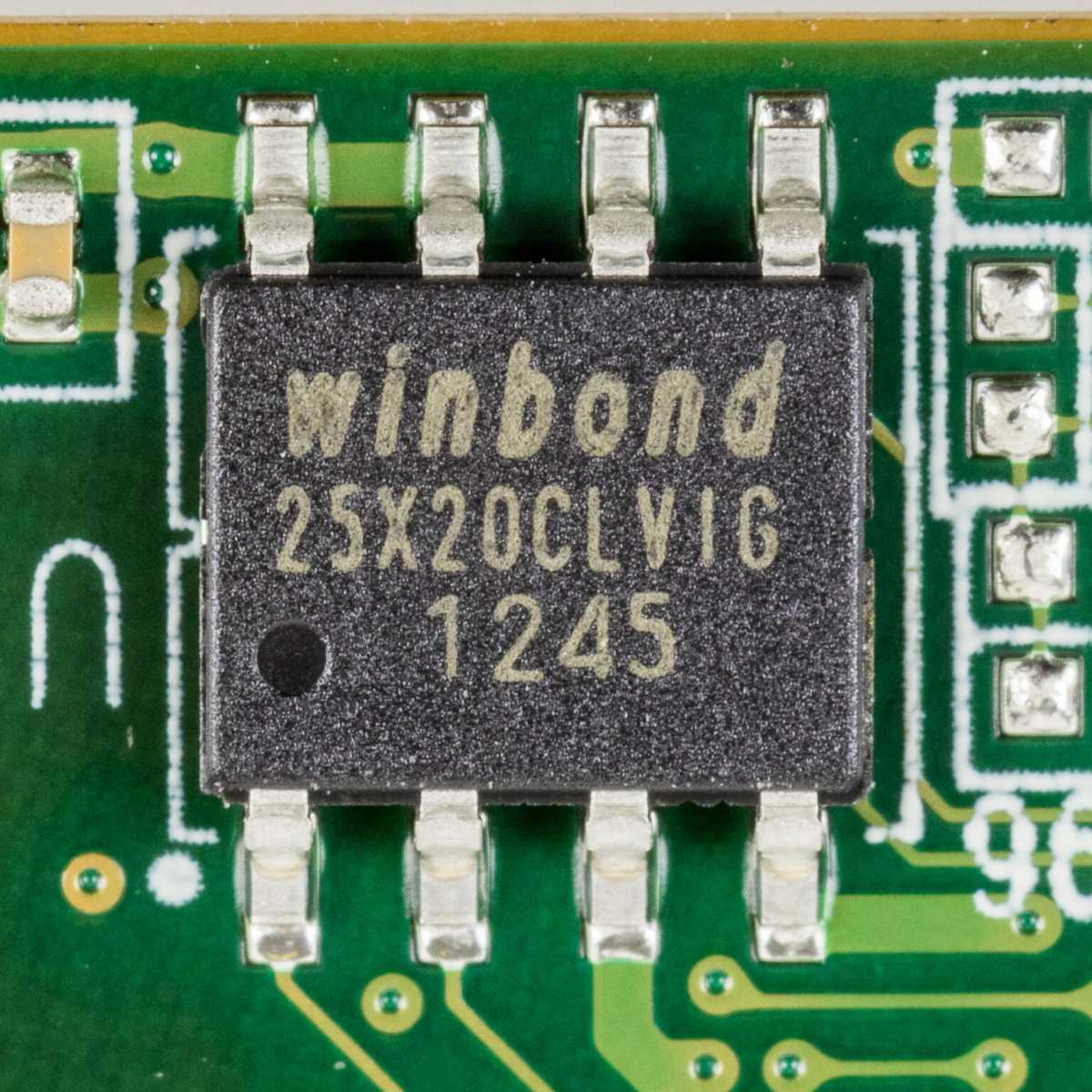
The UEFI software is stored on a small chip on the motherboard, often from Winbond.
Raimond Spekking
From a practical perspective, there are few differences between the two software systems. BIOS could only boot operating systems from storage devices formatted in the Master Boot Record (MBR) format, which, amongst other things, limited disks to a maximum of 2.2TB of space and four partitions, while UEFI normally uses the GUID Partition Table (GPT) format and has virtually no limitations.
Another difference is that UEFI can detect and utilize more hardware at the firmware level and can therefore, for example, make use of Ethernet and Wi-Fi. Newer motherboards often support Bluetooth, allowing you to use a Bluetooth keyboard to configure BIOS settings.
Windows 11 only works on computers with UEFI, partly because the system requires support for Secure Boot, which is only available in UEFI.
Skärmdump
The most common way to open the BIOS settings is to press a specific key on the keyboard immediately after the computer has started up, before the operating system has a chance to boot. Different computer and motherboard manufacturers use different keys. The most common are Delete and F2, but F1, F10, and Escape are also used.
Start the computer and then press the key repeatedly until you reach the settings. If you only press it once, there is a high risk that you will miss the brief window during which the computer responds to input while booting up.
Sometimes the computer may not respond to input at all and boot directly into Windows without displaying anything else on the screen. This may be because it is set to use something called “fast startup.” In that case, you can access the settings via Windows.
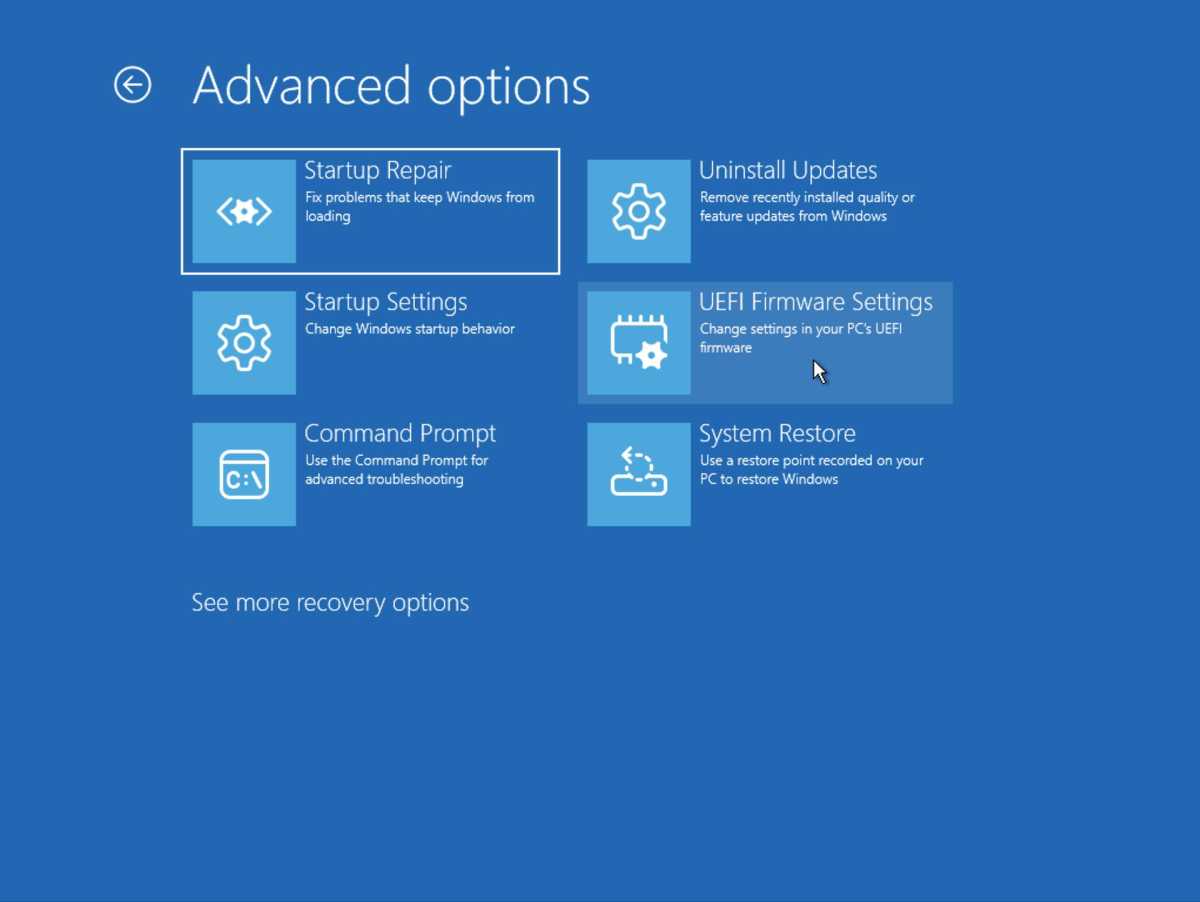
Open Settings and go to System > Recovery. Click on Restart now to the right of Advanced startup. The computer will now restart to a blue screen where you will find various recovery options. Select Troubleshoot > Advanced options > UEFI firmware settings. You can always use this method if you prefer, but pressing the “BIOS button” during boot-up is quicker.
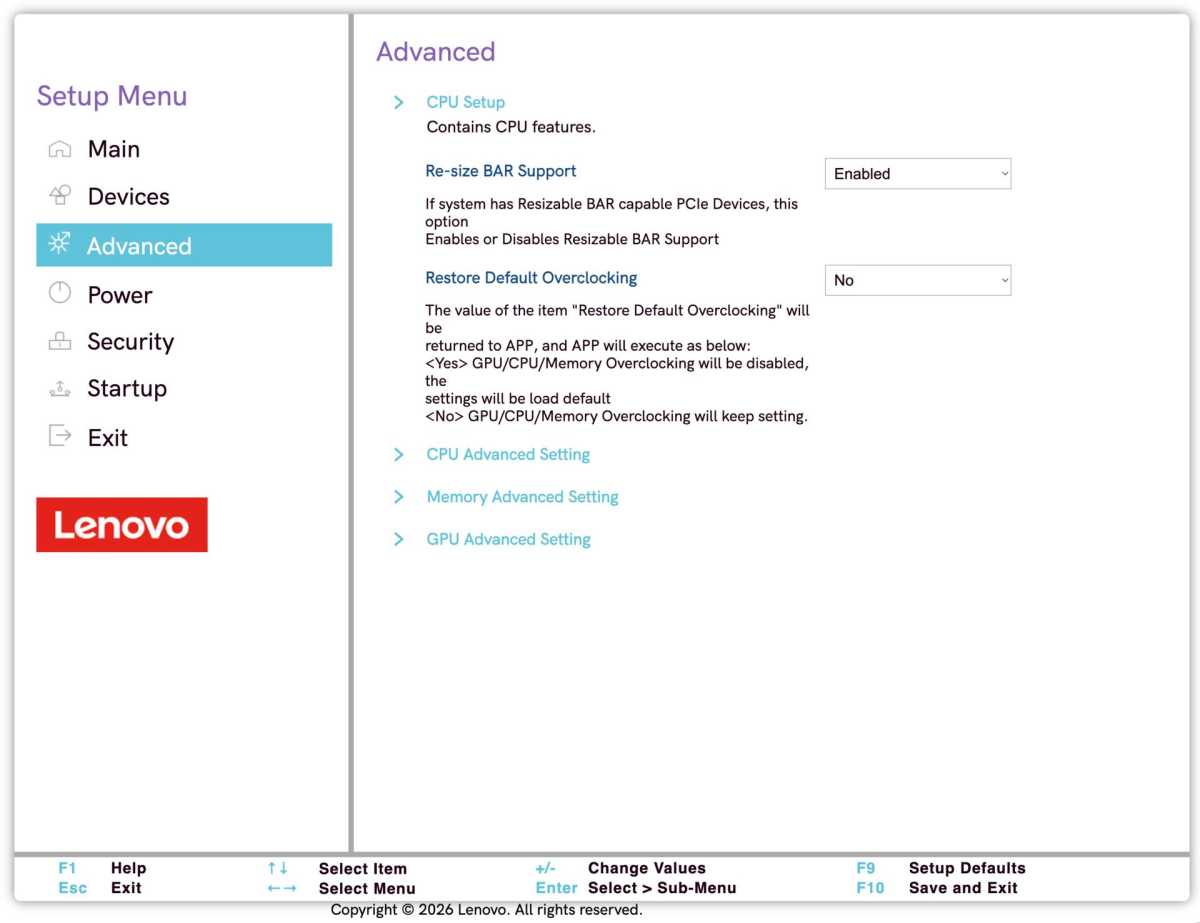
This is what the settings might look like on a modern computer.
Skärmdump
So what can you do in the UEFI/BIOS settings? Quite a lot! Broadly speaking, it’s about performance, turning various hardware components on or off, and controlling how the computer boots the operating system (for example, via Secure Boot).
In the past, BIOS settings were essentially text-based with very simple graphics, and you could only navigate using the keyboard. Today, most have a higher-resolution graphical interface and support for a mouse (via cable or wireless dongle; Bluetooth usually doesn’t work).
But the basic layout remains the same: A number of menus with different categories of settings. Once you have finished configuring the settings, you need to save them, usually via a menu called Exit or Save & Exit.
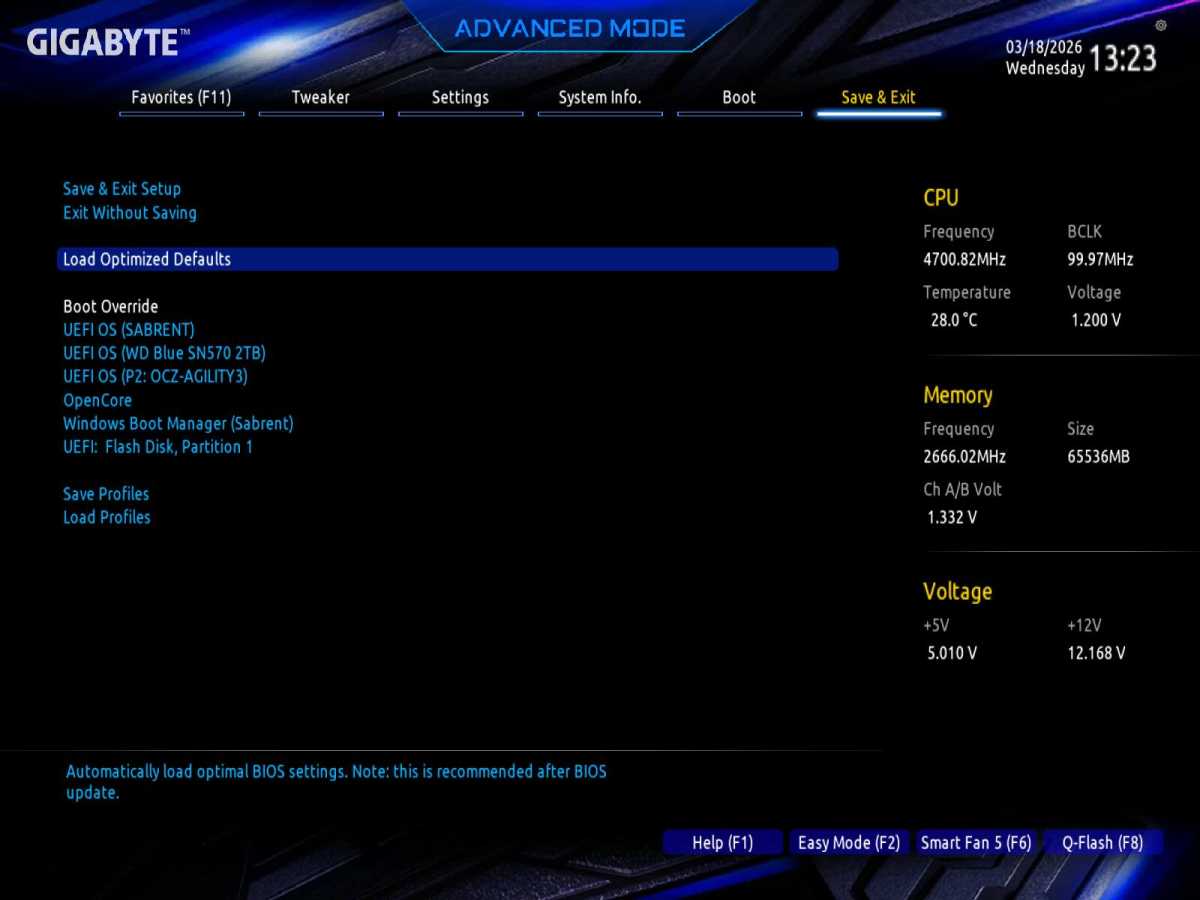
Load optimized default settings.
Skärmdump
Many manufacturers provide a set of pre-selected settings that have been tested and optimize the computer for the average user. This feature is called Load optimized defaults and is usually found on the first page or under [Save &] Exit. This enables features such as automatic memory overclocking (XMP with Intel, EXPO with AMD) and others.
It is a good idea to start by running this and then make any further changes based on that baseline, rather than starting from the default settings when the computer is new or has been reset (which are not always the same).
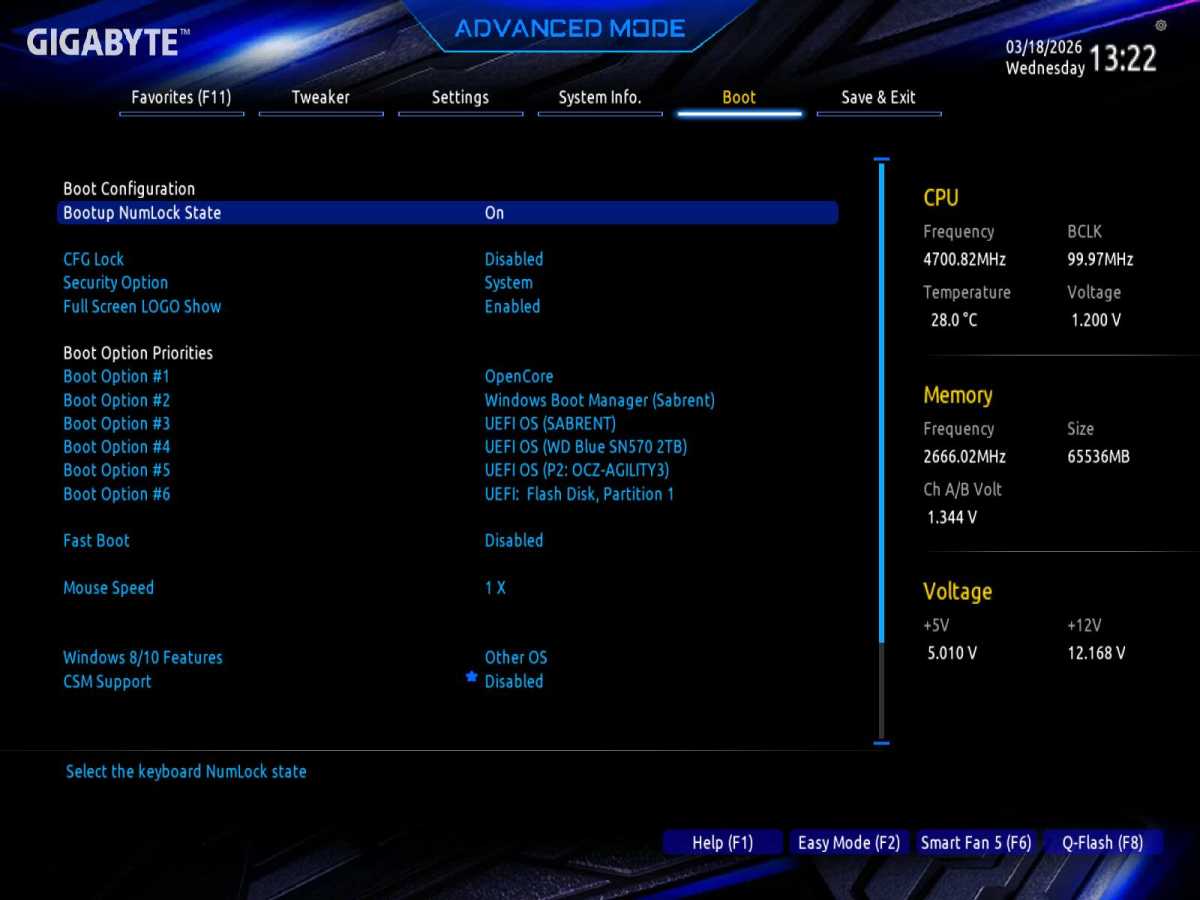
Select how the computer should start up.
Skärmdump
If you have installed more than one operating system on different drives or need to boot the computer from an external drive, such as Windows installation media on a USB stick, you can use the UEFI/BIOS settings to select which drive the computer should boot from.
There are two ways to do this: You can either change the boot order, i.e. the order in which the UEFI software should attempt to boot an operating system from the various available storage devices. This is a “permanent” change. For example, if you have Windows 11 on one drive and a Linux distribution on another, you can change the boot order to select which system should normally start automatically.
If you just want to boot a different system on a one-off basis, you can instead use what is commonly known as a boot override. This is usually found under Save & Exit or Boot.
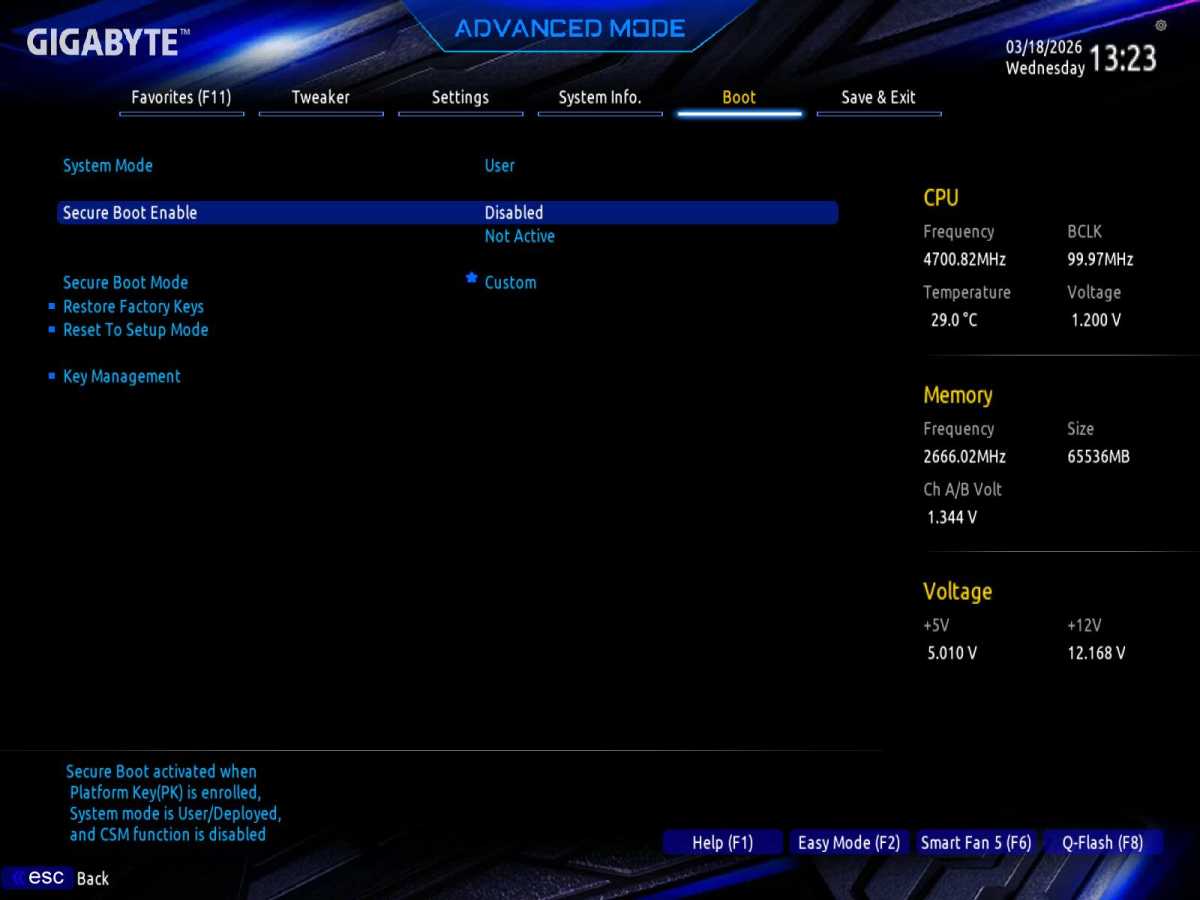
Secure Boot
Skärmdump
In the Boot menu, you’ll also find settings for Secure Boot, a feature that, among other things, prevents operating systems lacking a valid cryptographic signature from booting. Windows 11 requires a motherboard with Secure Boot support, but the feature doesn’t have to be enabled.
This menu may have various names, such as Advanced, Settings, or Devices. It contains settings for networking (for example, you can disable Wi-Fi completely if you only use Ethernet), USB ports, Thunderbolt, and other ports and functions.
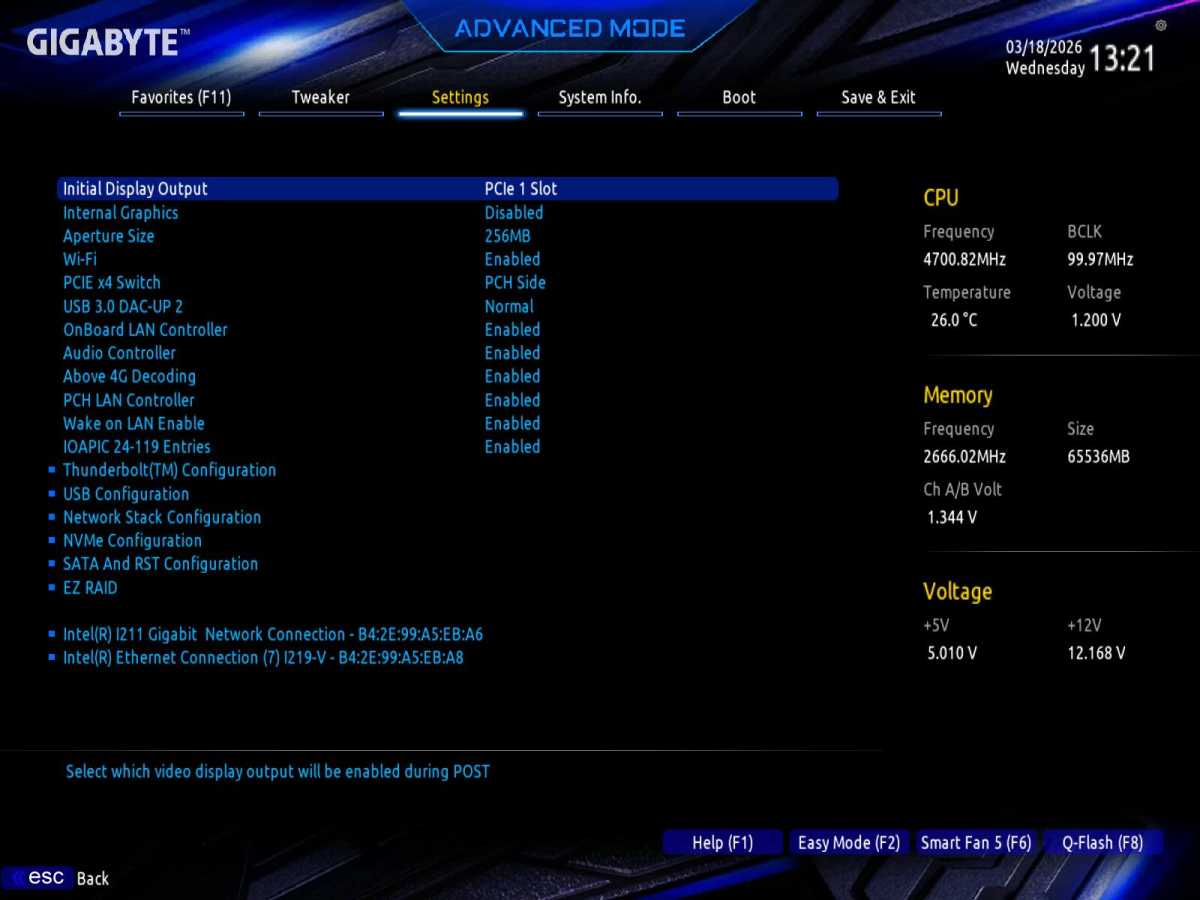
Configure your computer’s hardware.
Skärmdump
Most people can leave these settings as they are, but there are exceptions where it may be worth changing something. For example, if you’ve bought a new Wi-Fi card for an older computer, you can disable the computer’s built-in Wi-Fi to prevent the two from conflicting in Windows.
A common reason for opening the BIOS/UEFI is a desire to make the computer a little faster by optimizing performance settings. This may involve overclocking, i.e. increasing the processor’s clock speed and/or boost frequency, but often it is just as much about cooling it down by lowering the voltage so that the power consumption is reduced. A lower temperature, in turn, means that the processor can be pushed harder without overheating.
Overclocking is only possible on certain motherboards and with certain processor models. Intel marks models that can be overclocked with a K in the model designation (for example, Core Ultra 285K), but AMD has no equivalent. Previously, an X indicated an “unlocked” processor, as it is known, but today, for example, the Ryzen 5 9600 is also unlocked and can be overclocked.
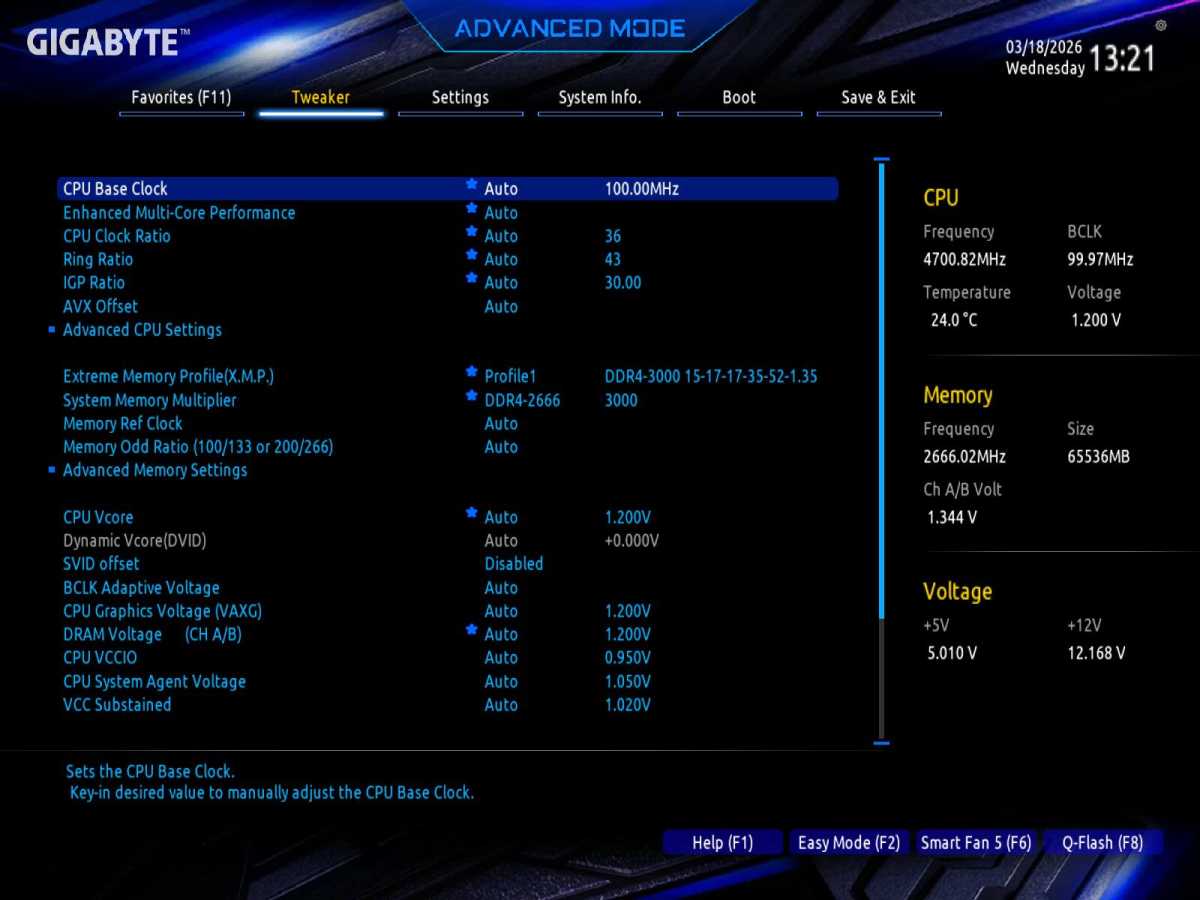
Overclocking and optimization.
Skärmdump
However, other motherboards and processors also have various settings relating to performance, particularly automatic memory overclocking (see above) and the ability to change the power limit. The latter can make the processor faster, but also generates more heat, so you need good cooling to benefit from it.
On some motherboards, it is possible to change the base clock frequency (known as “BCLK”) even on a locked processor, but this is an advanced form of overclocking that can make the computer unstable, so it is important to proceed with caution. Increase it gradually and test stability using something that puts as much load on the processor as possible, such as the Cinebench benchmark test.
Another setting that can be useful is fan profiles. On both desktop and laptop computers, the fans are normally set to balance cooling and noise levels, but if you want maximum performance for gaming or other tasks, you can instead choose a more aggressive fan profile. This may be called performance mode or something similar.
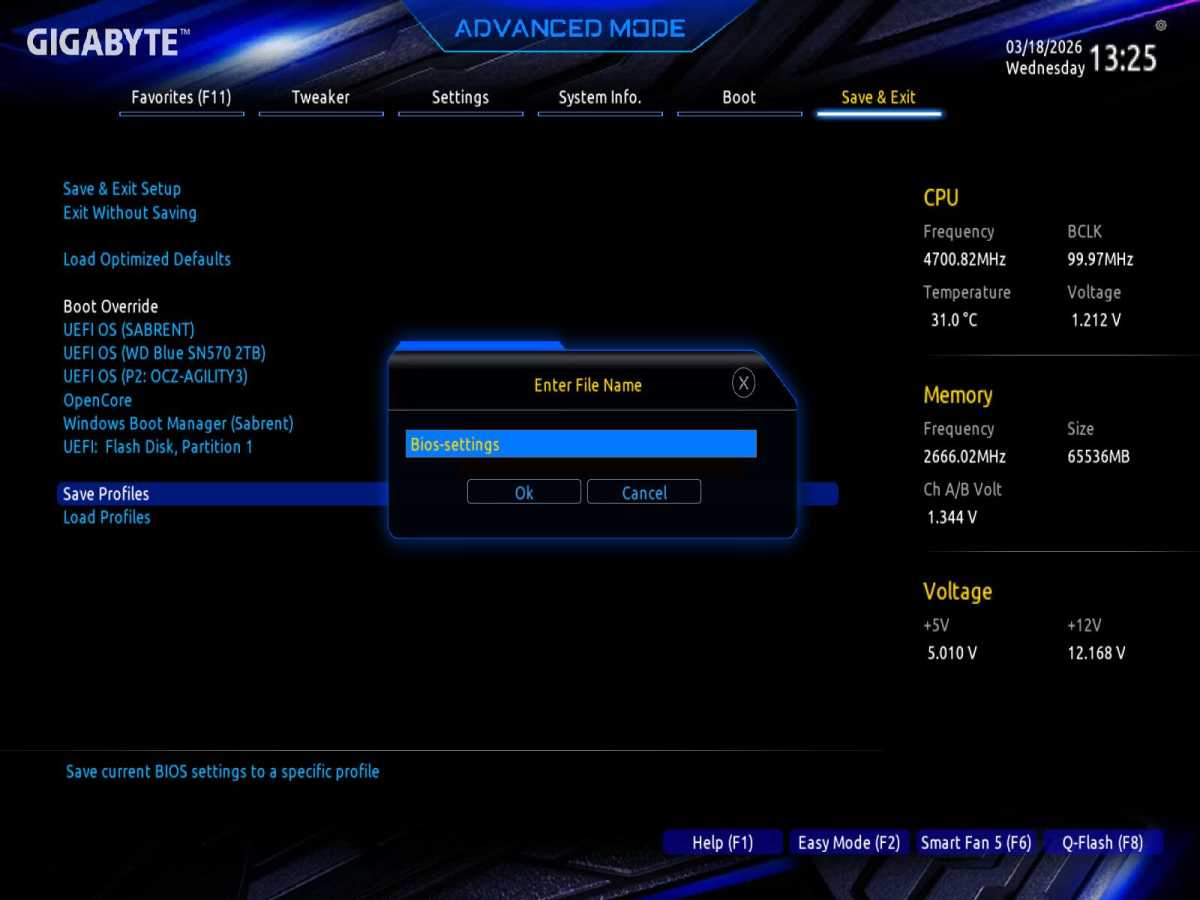
Save your settings to a profile.
Skärmdump
If you’ve made a lot of adjustments and are happy with how your computer is performing, you can save them so that you can load the same settings again after experimenting further with the settings or resetting them. Exactly how you do this varies from manufacturer to manufacturer, but it is usually referred to as profiles, and on many motherboards, saved profiles are retained even if you reset the CMOS memory and thereby restore the UEFI/BIOS to factory settings.
Some motherboards have a function to save such settings profiles to a connected USB stick, which must be formatted in FAT32 format. This way, you get a backup of your optimized settings.
You will normally find the function to load a saved profile under [Save &] Exit or on the first page of the settings.
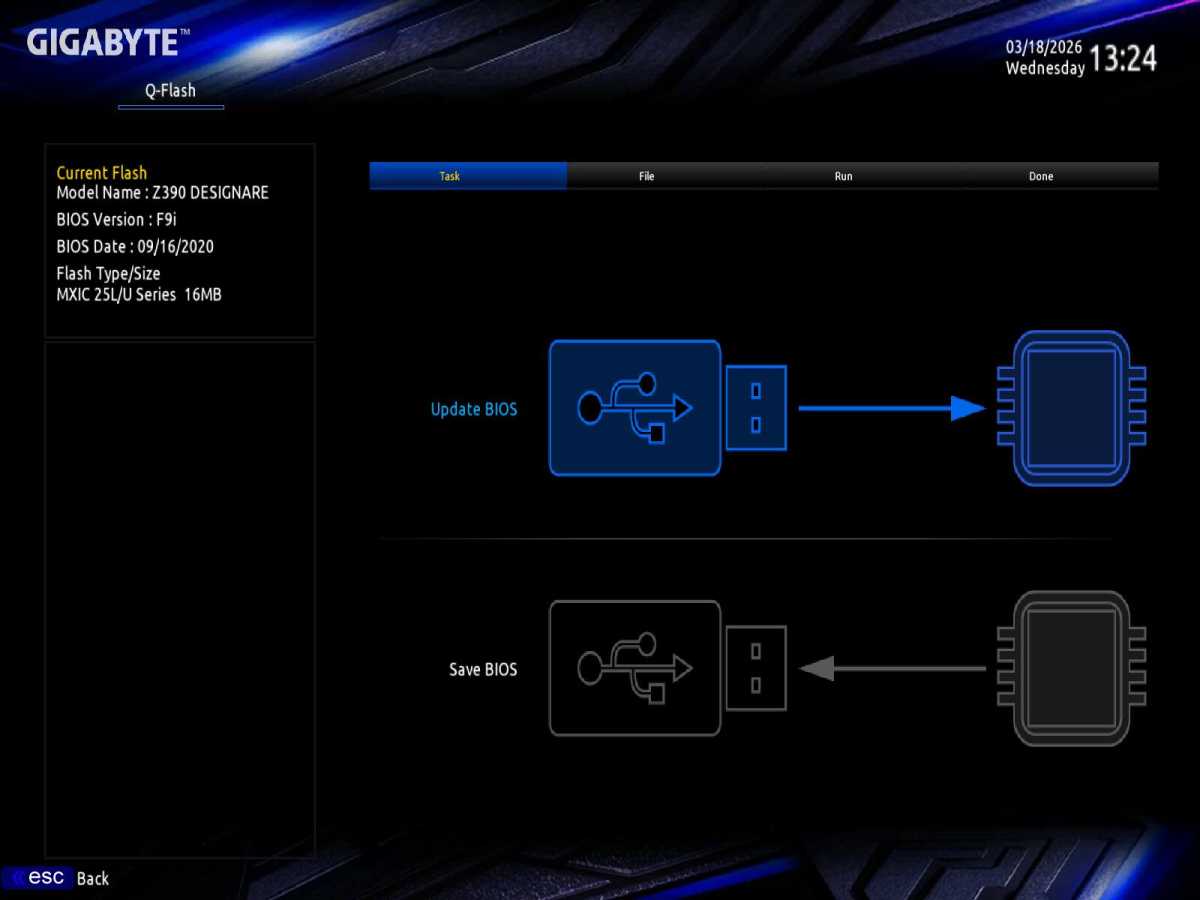
Update the UEFI firmware to make your computer more secure.
Skärmdump
From time to time, manufacturers release updates to the UEFI firmware for their computers and motherboards. These updates are partly about various performance optimizations — for example, when AMD or Intel have released new processors, but primarily about security.
If your computer is working well as it is, you don’t need to go to the trouble of installing any UEFI updates. There is always a small risk that something might go wrong. However, sometimes serious security flaws are discovered either in the UEFI software itself or in the processor’s so-called microcode, and in such cases it is a good idea to install an update that fixes the flaw.
You can also choose to update to benefit from the latest optimizations, and sometimes the manufacturer adds new features. For example, I myself have a Gigabyte motherboard from 2019 which, after a few years, received an update that enables support for a technology called Resizable BAR and boosts performance with modern graphics cards.
To update the UEFI software, you can either use a function in the “BIOS” settings or a program in Windows. The former is more tried and tested and involves a slightly lower risk, but some manufacturers recommend their Windows programs, which also make it easy to find and download the correct update.
If you go via the settings, you need to copy the downloaded update to a FAT32-formatted USB stick and reboot into UEFI/BIOS. Open the firmware update function and select the update file.
One important thing to do before updating the UEFI software is to check that you have saved your BitLocker recovery key, if you use Microsoft’s disk encryption feature. After the update, you will need to enter it to decrypt the drive and regain access to all your files. The key may be stored in your Microsoft account; you can check this on the Microsoft website.
This article originally appeared on our sister publication PC för Alla and was translated and localized from Swedish.

Anders writes news, reviews and buying guides that touch most categories of consumer tech. After many years as a Macworld writer, he has recently written more and more for our sister site, PC for Alla. He schools in various subject areas such as security, networking and creative tools.
Image: Skärmdump
Summary created by Smart Answers AI
In summary:
- PCWorld explains that UEFI firmware controls essential PC hardware settings and boot processes, often resolving issues mistakenly blamed on Windows.
- Understanding UEFI/BIOS settings matters for troubleshooting boot problems, optimizing performance, and managing hardware conflicts before they affect your operating system.
- Key benefits include accessing advanced configurations, updating firmware for security fixes, and saving optimized profiles for reliable system performance.
Keep an eye on your PC when you’ve just switched it on. Usually, a screen flashes by before Windows (or Linux, for that matter) starts to boot up. This is a glimpse of the computer’s basic firmware, often referred to as the BIOS, even though all modern PCs use something called the UEFI (Universal Extensible Firmware Interface).
The main task of the UEFI software is to activate all hardware components and hand the computer over to the operating system in a working state. But it also has another important task: to provide a user interface for basic settings of the computer’s hardware that apply regardless of the operating system. And if something goes wrong and Windows fails to start, you may need to open the UEFI to, for example, boot the computer from a USB stick instead of the internal storage.
This is how the computer starts up
When you press your PC’s power button, the boot process begins with the processor reading its very first instruction from a predetermined memory address that points to the UEFI software’s starting point. The UEFI software is stored in a ROM chip on the motherboard.
The first thing UEFI does is check that all necessary components are in place and can be activated, a process known as POST and usually indicated by LEDs on the motherboard. If something goes wrong here and the computer fails to start at all, the LEDs are used to display an error code that you can use for troubleshooting. This could, for example, be that a faulty memory module is connected or that you have not connected a graphics card.
From UEFI to the operating system.
Amila Ruwan (CC BY-SA 4.0)
UEFI uses settings you have configured in its interface (often referred to as the BIOS) to determine which components should be handed over to the operating system. For example, if you have disabled the motherboard’s built-in Wi-Fi, Windows will not “see” that component and will therefore have no Wi-Fi unless you have a separate PCI Express Wi-Fi card or a USB dongle.
UEFI then loads a so-called bootloader, another piece of essential software which in turn loads and starts the operating system. On modern computers with hard drives formatted in GPT format, this software is located on a so-called EFI partition, which is normally hidden in File Explorer. Some bootloader programs have their own start menus for choosing between different installed operating systems. If you have ever used a computer with both Linux and Windows, you may, for example, have seen the Grub bootloader.
The UEFI software is stored on a small chip on the motherboard, often from Winbond.
Raimond Spekking
Differences between UEFI and the old BIOS
From a practical perspective, there are few differences between the two software systems. BIOS could only boot operating systems from storage devices formatted in the Master Boot Record (MBR) format, which, amongst other things, limited disks to a maximum of 2.2TB of space and four partitions, while UEFI normally uses the GUID Partition Table (GPT) format and has virtually no limitations.
Another difference is that UEFI can detect and utilize more hardware at the firmware level and can therefore, for example, make use of Ethernet and Wi-Fi. Newer motherboards often support Bluetooth, allowing you to use a Bluetooth keyboard to configure BIOS settings.
Windows 11 only works on computers with UEFI, partly because the system requires support for Secure Boot, which is only available in UEFI.
Skärmdump
How to access the BIOS/UEFI settings
The most common way to open the BIOS settings is to press a specific key on the keyboard immediately after the computer has started up, before the operating system has a chance to boot. Different computer and motherboard manufacturers use different keys. The most common are Delete and F2, but F1, F10, and Escape are also used.
Start the computer and then press the key repeatedly until you reach the settings. If you only press it once, there is a high risk that you will miss the brief window during which the computer responds to input while booting up.
Sometimes the computer may not respond to input at all and boot directly into Windows without displaying anything else on the screen. This may be because it is set to use something called “fast startup.” In that case, you can access the settings via Windows.
Open Settings and go to System > Recovery. Click on Restart now to the right of Advanced startup. The computer will now restart to a blue screen where you will find various recovery options. Select Troubleshoot > Advanced options > UEFI firmware settings. You can always use this method if you prefer, but pressing the “BIOS button” during boot-up is quicker.
This is what the settings might look like on a modern computer.
Skärmdump
Common settings
So what can you do in the UEFI/BIOS settings? Quite a lot! Broadly speaking, it’s about performance, turning various hardware components on or off, and controlling how the computer boots the operating system (for example, via Secure Boot).
In the past, BIOS settings were essentially text-based with very simple graphics, and you could only navigate using the keyboard. Today, most have a higher-resolution graphical interface and support for a mouse (via cable or wireless dongle; Bluetooth usually doesn’t work).
But the basic layout remains the same: A number of menus with different categories of settings. Once you have finished configuring the settings, you need to save them, usually via a menu called Exit or Save & Exit.
Load optimized default settings.
Skärmdump
Many manufacturers provide a set of pre-selected settings that have been tested and optimize the computer for the average user. This feature is called Load optimized defaults and is usually found on the first page or under [Save &] Exit. This enables features such as automatic memory overclocking (XMP with Intel, EXPO with AMD) and others.
It is a good idea to start by running this and then make any further changes based on that baseline, rather than starting from the default settings when the computer is new or has been reset (which are not always the same).
Select how the computer should start up.
Skärmdump
Boot settings and Secure Boot
If you have installed more than one operating system on different drives or need to boot the computer from an external drive, such as Windows installation media on a USB stick, you can use the UEFI/BIOS settings to select which drive the computer should boot from.
There are two ways to do this: You can either change the boot order, i.e. the order in which the UEFI software should attempt to boot an operating system from the various available storage devices. This is a “permanent” change. For example, if you have Windows 11 on one drive and a Linux distribution on another, you can change the boot order to select which system should normally start automatically.
If you just want to boot a different system on a one-off basis, you can instead use what is commonly known as a boot override. This is usually found under Save & Exit or Boot.
Secure Boot
Skärmdump
In the Boot menu, you’ll also find settings for Secure Boot, a feature that, among other things, prevents operating systems lacking a valid cryptographic signature from booting. Windows 11 requires a motherboard with Secure Boot support, but the feature doesn’t have to be enabled.
Hardware settings
This menu may have various names, such as Advanced, Settings, or Devices. It contains settings for networking (for example, you can disable Wi-Fi completely if you only use Ethernet), USB ports, Thunderbolt, and other ports and functions.
Configure your computer’s hardware.
Skärmdump
Most people can leave these settings as they are, but there are exceptions where it may be worth changing something. For example, if you’ve bought a new Wi-Fi card for an older computer, you can disable the computer’s built-in Wi-Fi to prevent the two from conflicting in Windows.
Overclocking or optimizing
A common reason for opening the BIOS/UEFI is a desire to make the computer a little faster by optimizing performance settings. This may involve overclocking, i.e. increasing the processor’s clock speed and/or boost frequency, but often it is just as much about cooling it down by lowering the voltage so that the power consumption is reduced. A lower temperature, in turn, means that the processor can be pushed harder without overheating.
Overclocking is only possible on certain motherboards and with certain processor models. Intel marks models that can be overclocked with a K in the model designation (for example, Core Ultra 285K), but AMD has no equivalent. Previously, an X indicated an “unlocked” processor, as it is known, but today, for example, the Ryzen 5 9600 is also unlocked and can be overclocked.
Overclocking and optimization.
Skärmdump
However, other motherboards and processors also have various settings relating to performance, particularly automatic memory overclocking (see above) and the ability to change the power limit. The latter can make the processor faster, but also generates more heat, so you need good cooling to benefit from it.
On some motherboards, it is possible to change the base clock frequency (known as “BCLK”) even on a locked processor, but this is an advanced form of overclocking that can make the computer unstable, so it is important to proceed with caution. Increase it gradually and test stability using something that puts as much load on the processor as possible, such as the Cinebench benchmark test.
Another setting that can be useful is fan profiles. On both desktop and laptop computers, the fans are normally set to balance cooling and noise levels, but if you want maximum performance for gaming or other tasks, you can instead choose a more aggressive fan profile. This may be called performance mode or something similar.
Save your settings to a profile.
Skärmdump
Save and restore settings
If you’ve made a lot of adjustments and are happy with how your computer is performing, you can save them so that you can load the same settings again after experimenting further with the settings or resetting them. Exactly how you do this varies from manufacturer to manufacturer, but it is usually referred to as profiles, and on many motherboards, saved profiles are retained even if you reset the CMOS memory and thereby restore the UEFI/BIOS to factory settings.
Some motherboards have a function to save such settings profiles to a connected USB stick, which must be formatted in FAT32 format. This way, you get a backup of your optimized settings.
You will normally find the function to load a saved profile under [Save &] Exit or on the first page of the settings.
Update the UEFI firmware to make your computer more secure.
Skärmdump
BIOS updates
From time to time, manufacturers release updates to the UEFI firmware for their computers and motherboards. These updates are partly about various performance optimizations — for example, when AMD or Intel have released new processors, but primarily about security.
If your computer is working well as it is, you don’t need to go to the trouble of installing any UEFI updates. There is always a small risk that something might go wrong. However, sometimes serious security flaws are discovered either in the UEFI software itself or in the processor’s so-called microcode, and in such cases it is a good idea to install an update that fixes the flaw.
You can also choose to update to benefit from the latest optimizations, and sometimes the manufacturer adds new features. For example, I myself have a Gigabyte motherboard from 2019 which, after a few years, received an update that enables support for a technology called Resizable BAR and boosts performance with modern graphics cards.
To update the UEFI software, you can either use a function in the “BIOS” settings or a program in Windows. The former is more tried and tested and involves a slightly lower risk, but some manufacturers recommend their Windows programs, which also make it easy to find and download the correct update.
If you go via the settings, you need to copy the downloaded update to a FAT32-formatted USB stick and reboot into UEFI/BIOS. Open the firmware update function and select the update file.
One important thing to do before updating the UEFI software is to check that you have saved your BitLocker recovery key, if you use Microsoft’s disk encryption feature. After the update, you will need to enter it to decrypt the drive and regain access to all your files. The key may be stored in your Microsoft account; you can check this on the Microsoft website.
Related content
- How (and why) to boot Windows 11 from a USB flash drive
- Master your BIOS: 8 tweaks that unlock hidden PC performance
- Windows survival skills: 8 things every PC user should know how to do
This article originally appeared on our sister publication PC för Alla and was translated and localized from Swedish.
Author: Anders Lundberg, Contributor, PCWorld
Anders writes news, reviews and buying guides that touch most categories of consumer tech. After many years as a Macworld writer, he has recently written more and more for our sister site, PC for Alla. He schools in various subject areas such as security, networking and creative tools.